Getting started in three steps
New here? These three steps get you connected in a few minutes. Everything you need is in the client area — no separate download pages or config files.
1. Open “Get started”
- Log in and go to the client area.
- Find your plan under “My services” and click Get started to expand the steps.
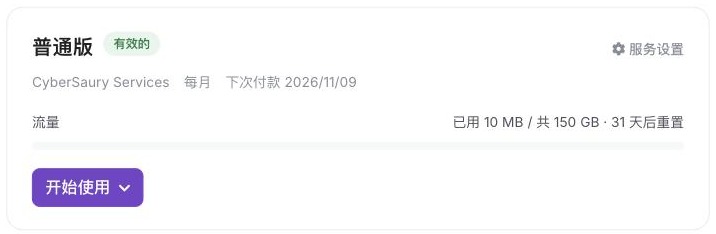
Just paid? The “Get started” button on the payment-success page opens this for you.
2. Install a client
The page detects your device (iOS / Android / Windows / macOS / Linux). The app marked Recommended is the one we suggest — click “Download”.
| Device | Recommended app | Price |
|---|---|---|
| Windows / macOS / Linux | Clash Verge | Free |
| Android | Clash Meta | Free |
| iPhone / iPad | Clash (App Store) | Free; needs a non-mainland-China Apple ID |
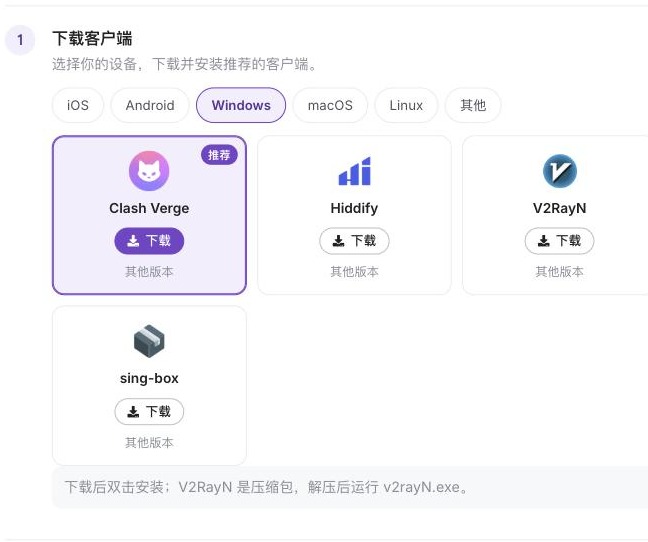
Setting up another device? Switch the system tab on the same page.
3. Import and connect

- Back on “Get started”, click Import to …; the app opens and adds the profile.
- No import button, or nothing happens? Click Copy subscription link and paste it into the app (see the guides below).
- Turn the connection on in the app and pick a node.
Your subscription link works like a password — don’t share it. If it leaks, open your service and choose “Manage → Reset subscription link”.