Hiddify guide (all platforms)
Hiddify is a free, open-source client built on sing-box. It runs on Android, iPhone / iPad, Windows, macOS and Linux with nearly the same interface everywhere.
1. Install
- Open My services → your service → “Get started”, choose your system, pick Hiddify and click “Download”.
- Android: open the downloaded apk to install it. If Android blocks unknown apps, allow your browser to install apps when prompted.
- iPhone / iPad: “Download” opens the App Store. Hiddify isn’t available in the mainland-China store, so sign in with a non-mainland-China Apple ID first — see How to get a non-mainland-China Apple ID.
- Windows: run the installer and follow the prompts. If a blue “Windows protected your PC” screen appears, click “More info” → “Run anyway” (animation in the Windows guide).
- macOS: open the downloaded package and drag Hiddify into Applications (or follow the installer).
- Linux: use the AppImage (make it executable and run it) or the deb package.
2. First launch
The welcome screen lets you pick a language. Make sure Region is set to China (cn) (usually detected automatically) so mainland sites connect directly instead of through the proxy. Then tap Start.
3. Import your subscription
Option 1: one-click import (recommended)
- On the device where Hiddify is installed, go back to “Get started” and click Import to Hiddify.
- Allow your browser to open Hiddify; the app opens and adds the profile automatically.
Option 2: manual
- Click Copy subscription link on “Get started”.
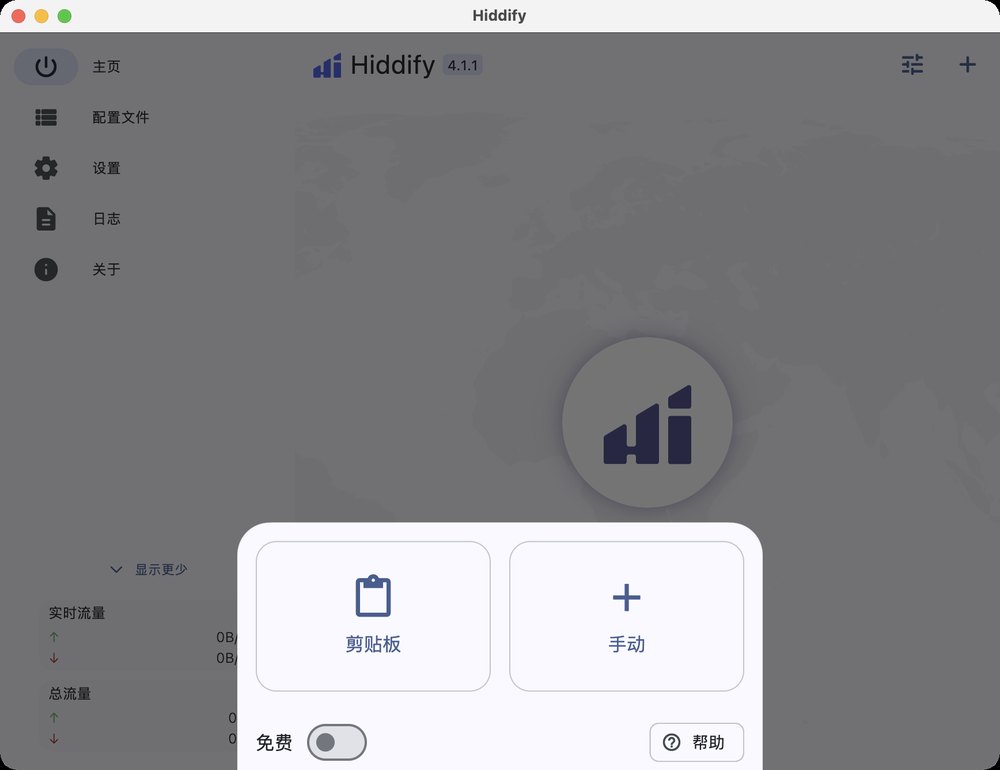
- Open Hiddify and tap + (Add profile) at the top right of the home screen.
- Choose Clipboard to add the copied link straight away — or choose Manually, enter any name (e.g. CyberSaury), paste the link as the URL and tap Add.
Your subscription link works like a password — don’t share it or post it anywhere public.
4. Connect
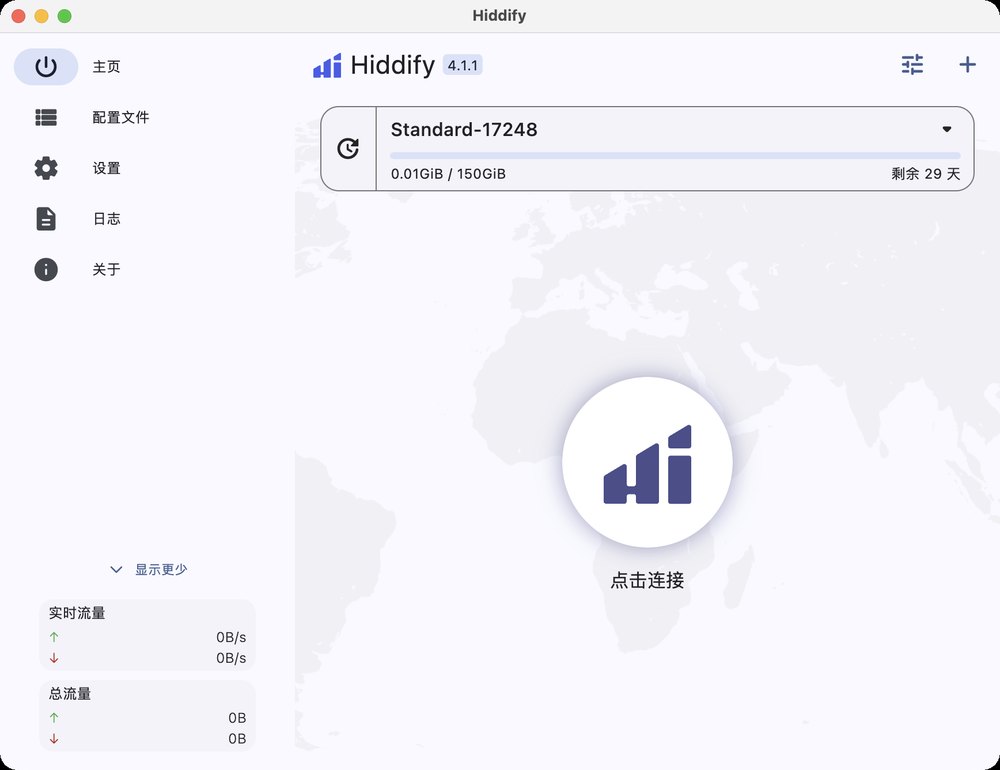
- On Home, tap the big round button in the middle (Tap to connect). When it says “Connected”, you’re online.
- On phones the system asks for permission the first time: on Android tap OK on the connection request; on iPhone tap Allow to add the VPN configuration and confirm with your passcode or Face ID.
- On computers the default mode is “Set system proxy”, which covers browsers and most apps. If an app ignores the system proxy, switch the service mode to VPN in settings (requires running Hiddify as administrator).
5. Choose a node
Once connected, open the Proxies page to see every node and its latency. By default the fastest node is picked automatically; tap any node to switch manually, or tap Test delay to re-test.
6. Update the subscription
Profiles update automatically from time to time. To refresh right away (e.g. after renewing), tap the update (refresh) button on the profile card on Home, or choose Update subscriptions in the Profiles list.
Still stuck? Open a ticket.
Want the simplest setup? We recommend Clash Verge on Windows, Clash Verge on macOS, Clash Meta on Android and Clash on iPhone.